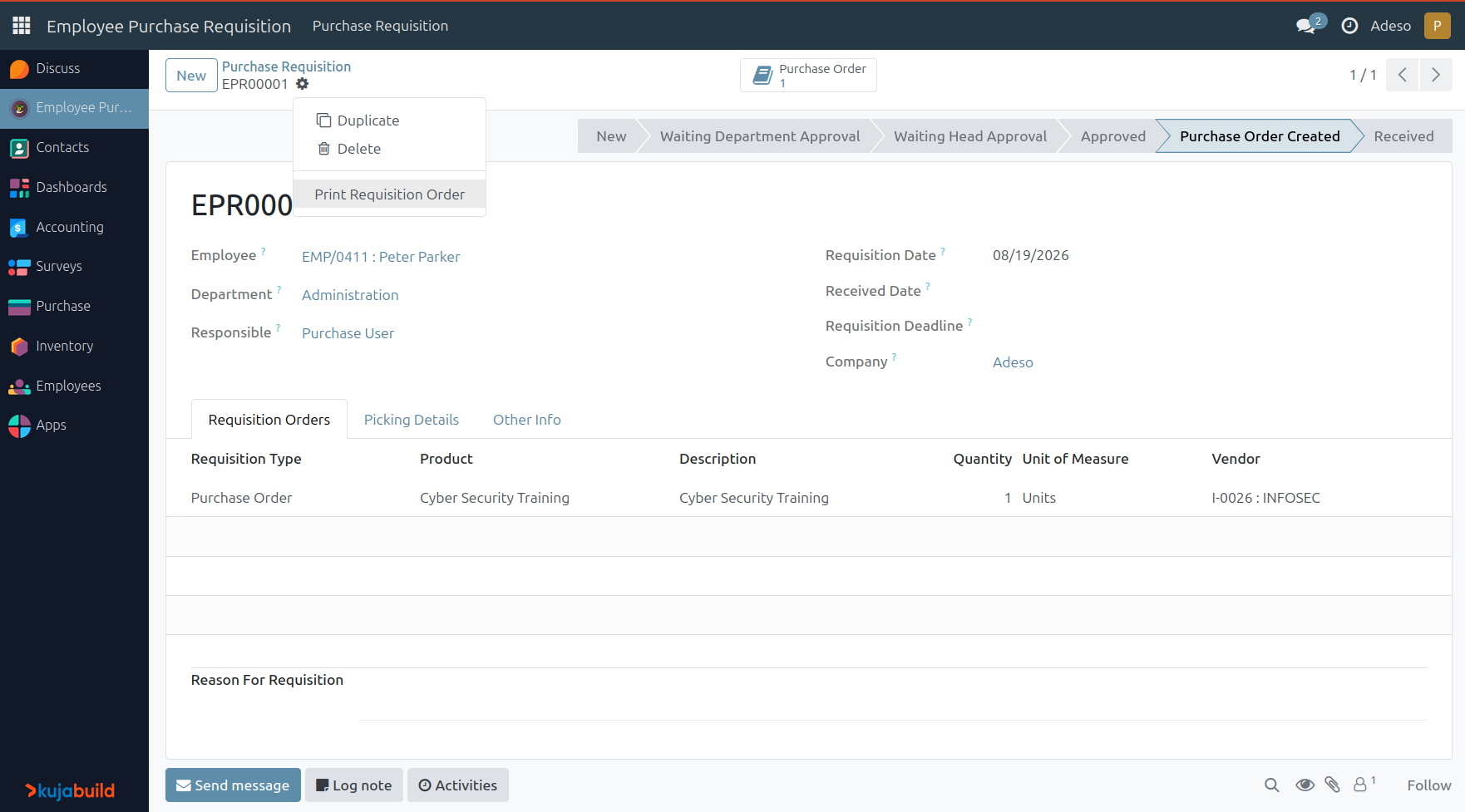
Employee Purchase Requisition
The Employee Purchase Requisition module lets employees request materials or services through a dedicated requisition form. Requests go through a two-level approval process (department head, then requisition manager) before turning into a purchase order or an internal stock transfer if the items are in stock.
Configuration
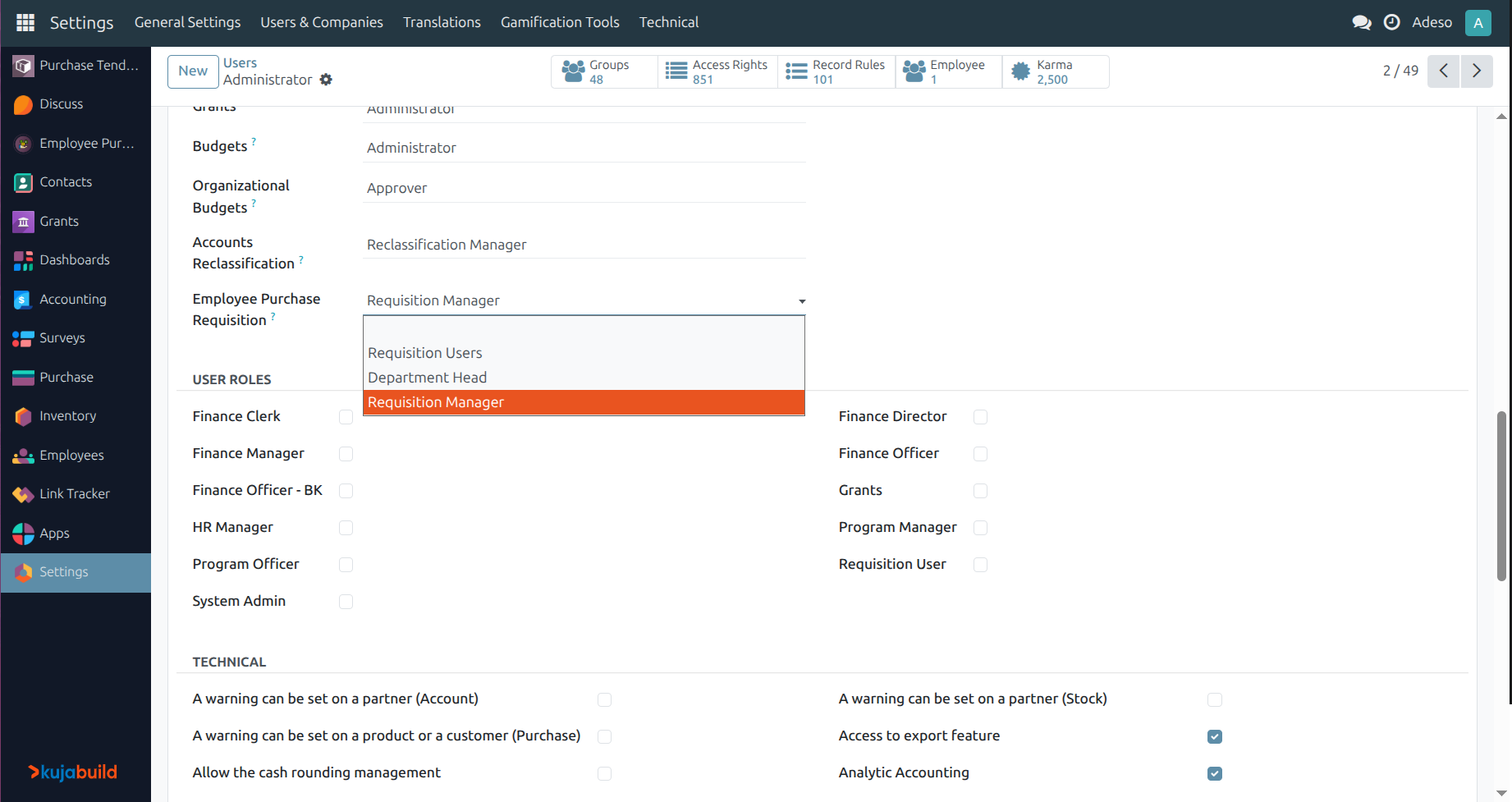
Employee Purchase Requisition adds the Employee Purchase Requisition app to the main menu, together with Requisition Users, Department Head and Requisition Manager access groups.

Users assigned to the Requisition Users group can create and manage their own requisitions
Users assigned to the Department Head group can approve/reject requisitions that they are responsible for
Users assigned to the Requisition Manager group can give final approval/rejection, mark requisitions received, and see all requisitions
To assign these roles, go to , open a user’s form, and select Requisition Users, Department Head or Requisition Manager under the Employee Purchase Requisition section.
Overview
An employee fills in a requisition listing the products or services they need. The request is then routed for approval. For each requisition line, the approver chooses whether it should be fulfilled through a purchase order (purchased from a vendor) or an internal transfer (issued from existing stock).
The requesting employee confirms the requisition.
The department head approves or rejects it. If any line requires a purchase order, a vendor must be set for every such line before the head can approve.
The requisition manager gives final approval or rejection.
Once approved, purchase orders and/or internal transfers are generated from the requisition lines.
Once all requested items have been received, the requisition can be marked as Received.
A PDF report summarizing the requisition (requester, dates, approvals, locations, and lines) can be printed from the form view at any stage.
Create a requisition
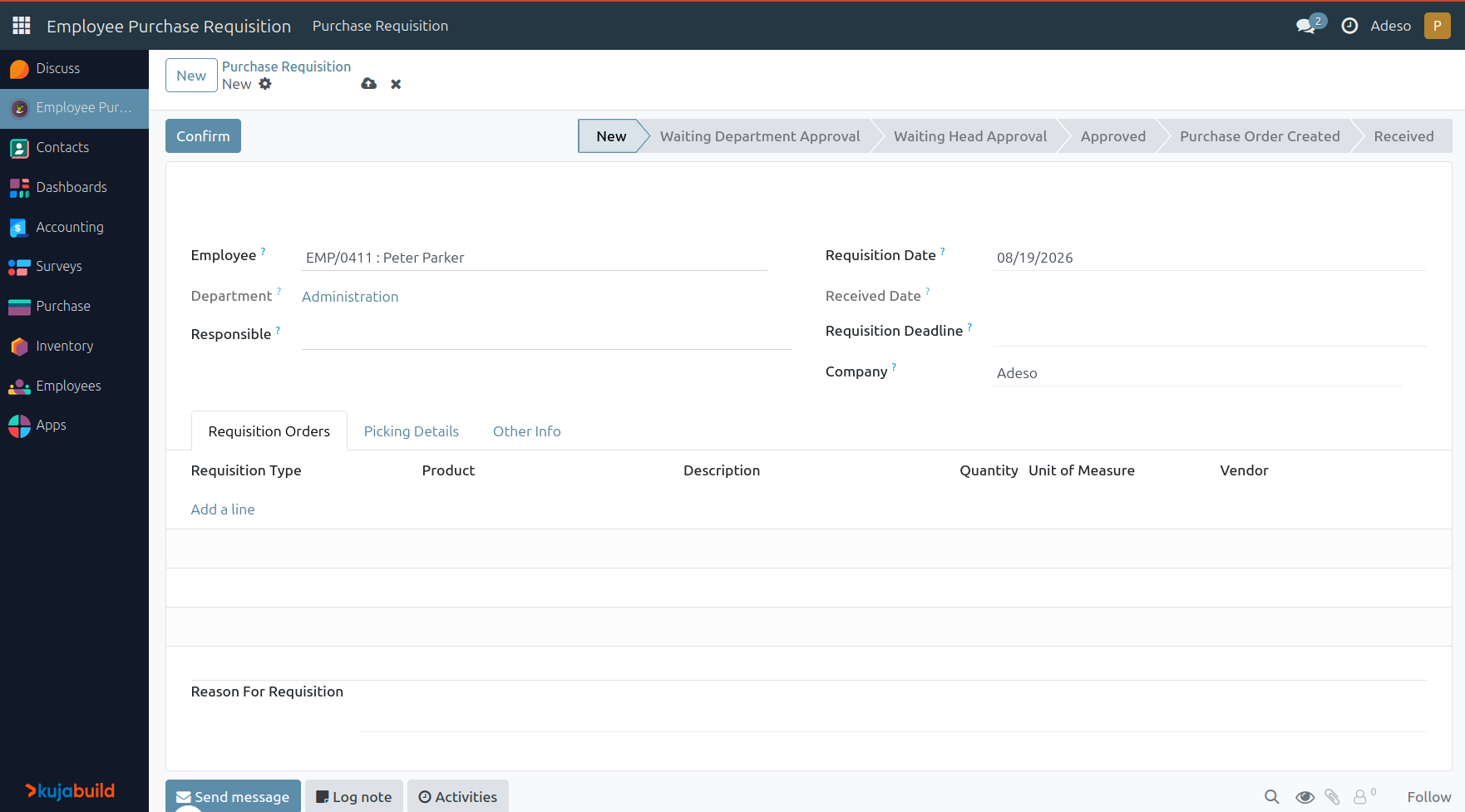
To create an employee purchase requisition, go to and click New. On the form, fill in:
Employee: the employee requesting the requisition.
Responsible: the user responsible for approving and fulfilling the requisition.
Requisition Deadline: the date by which the requisition needs to be fulfilled. Optional.
On the Requisition Orders tab, add one line per product, with the Quantity requested.
While the requisition is in the New state, every field remains editable. Click Confirm to send the requisition for department approval.
Approve/Reject a requisition as the Department Head/responsible
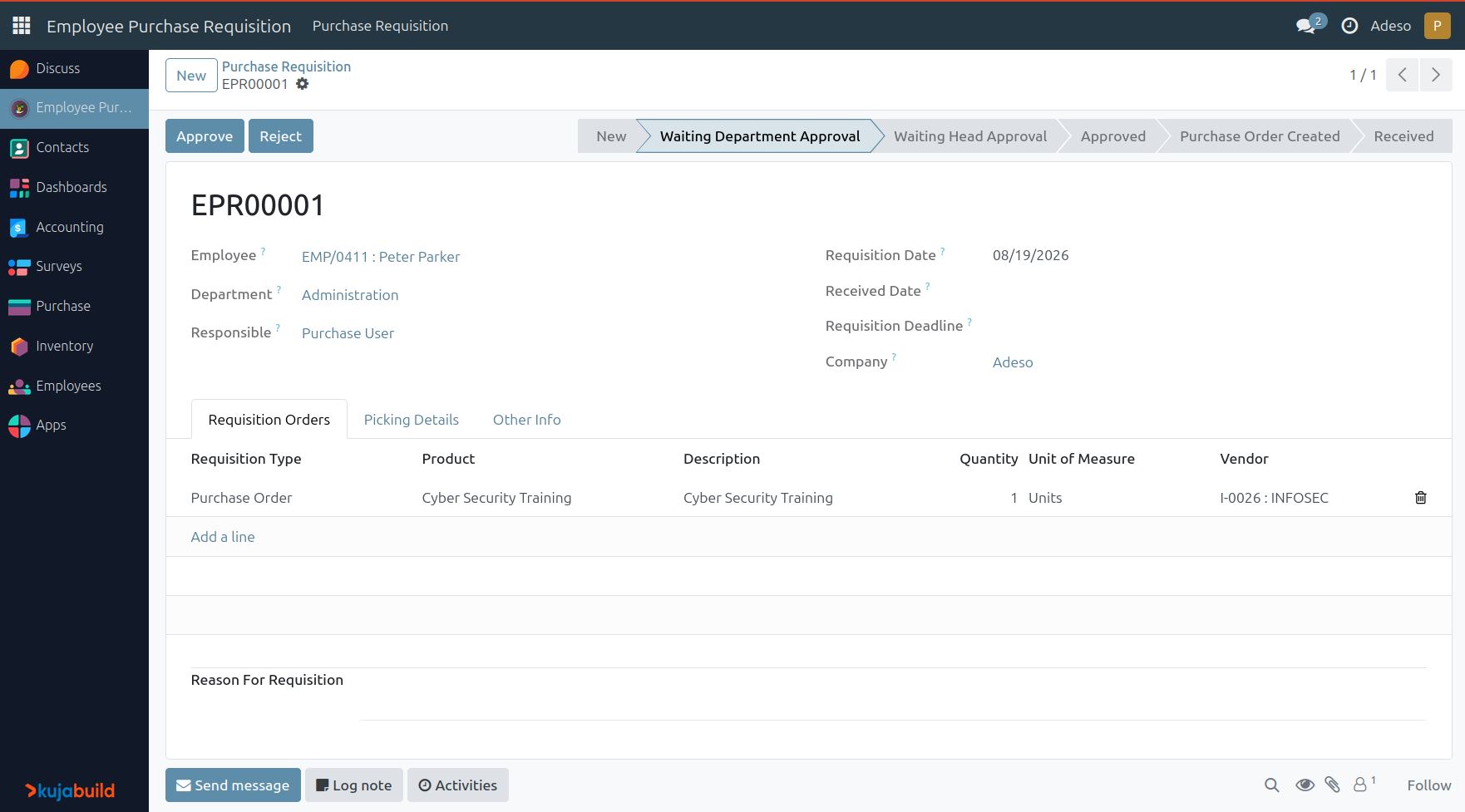
To view the employee purchase requisitions, go to and click on the requisition you want to approve/reject:
Click Approve to move the requisition to the next approval stage. Once approved by the Department Head, the requisition moves to the *Waiting Head Approval*state.
Click the Reject button to decline it and send it to the Cancelled state.
Approve/Reject a requisition as the Requisition Manager
To view the employee purchase requisitions, go to and click on the requisition you want to approve/reject:
Click the Approve button to approve it and send it to the Approved state.
Click the Reject button to decline it and send it to the Cancelled state.
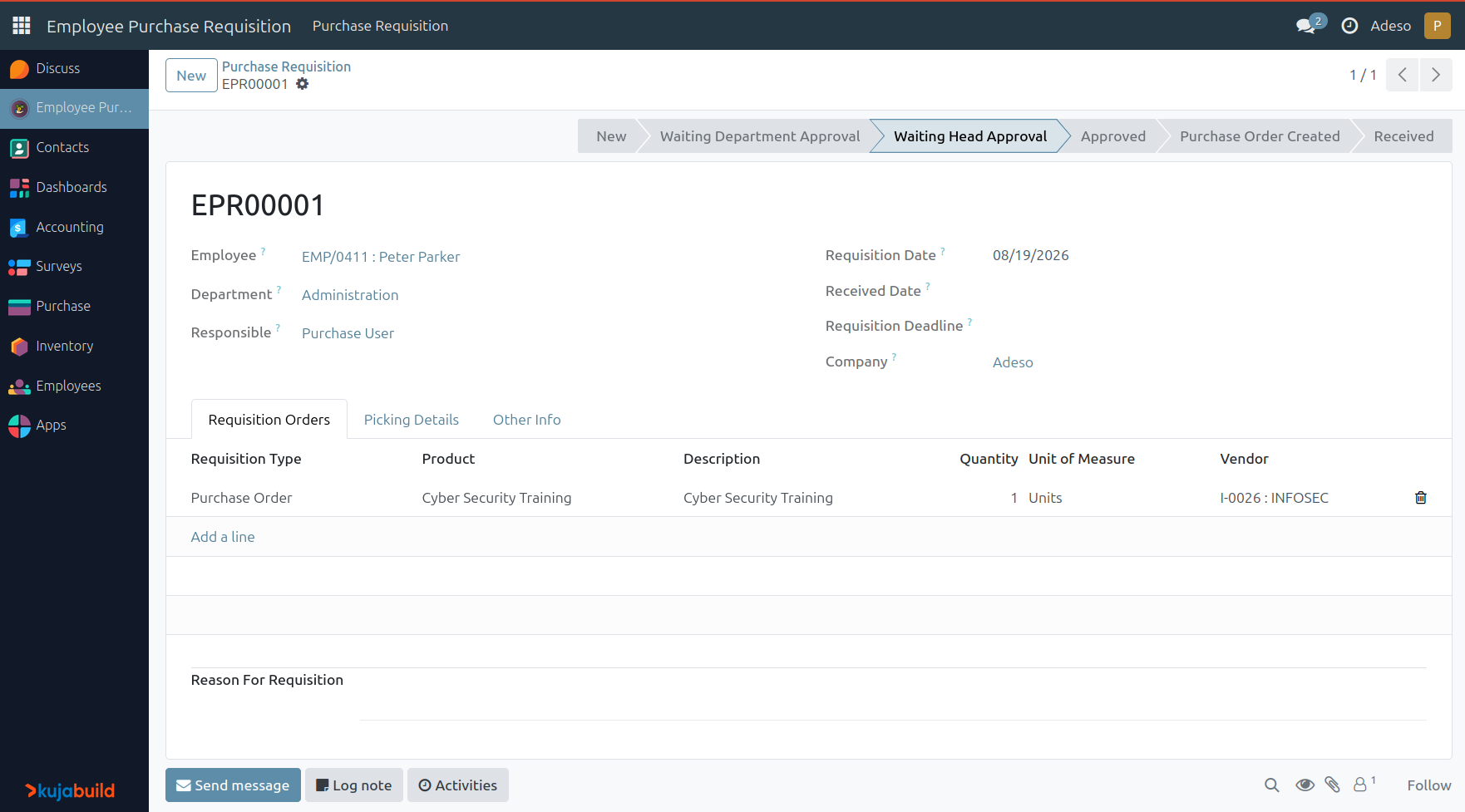
Generate Purchase Orders and Stock Transfers
To view the employee purchase requisitions, go to and click on the requisition you want to create a Purchase Order or Stock Picking for.
You need the appropriate user rights in the Purchase or Inventory apps for this.
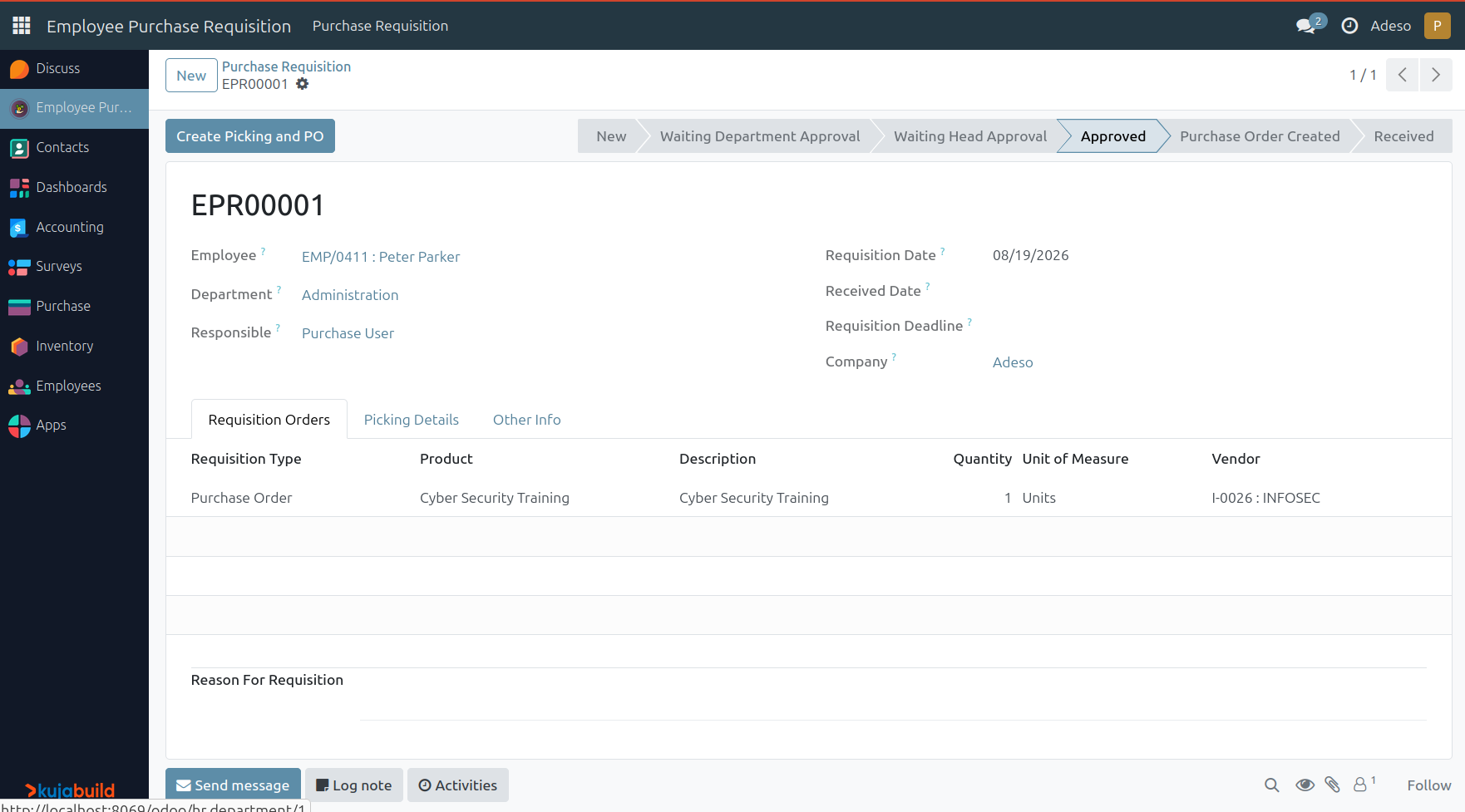
Click the Create Picking and PO button to create a Purchase Order or Stock Picking depending on the Requisition Type. The requisition moves to the “Purchase Order Created” state.
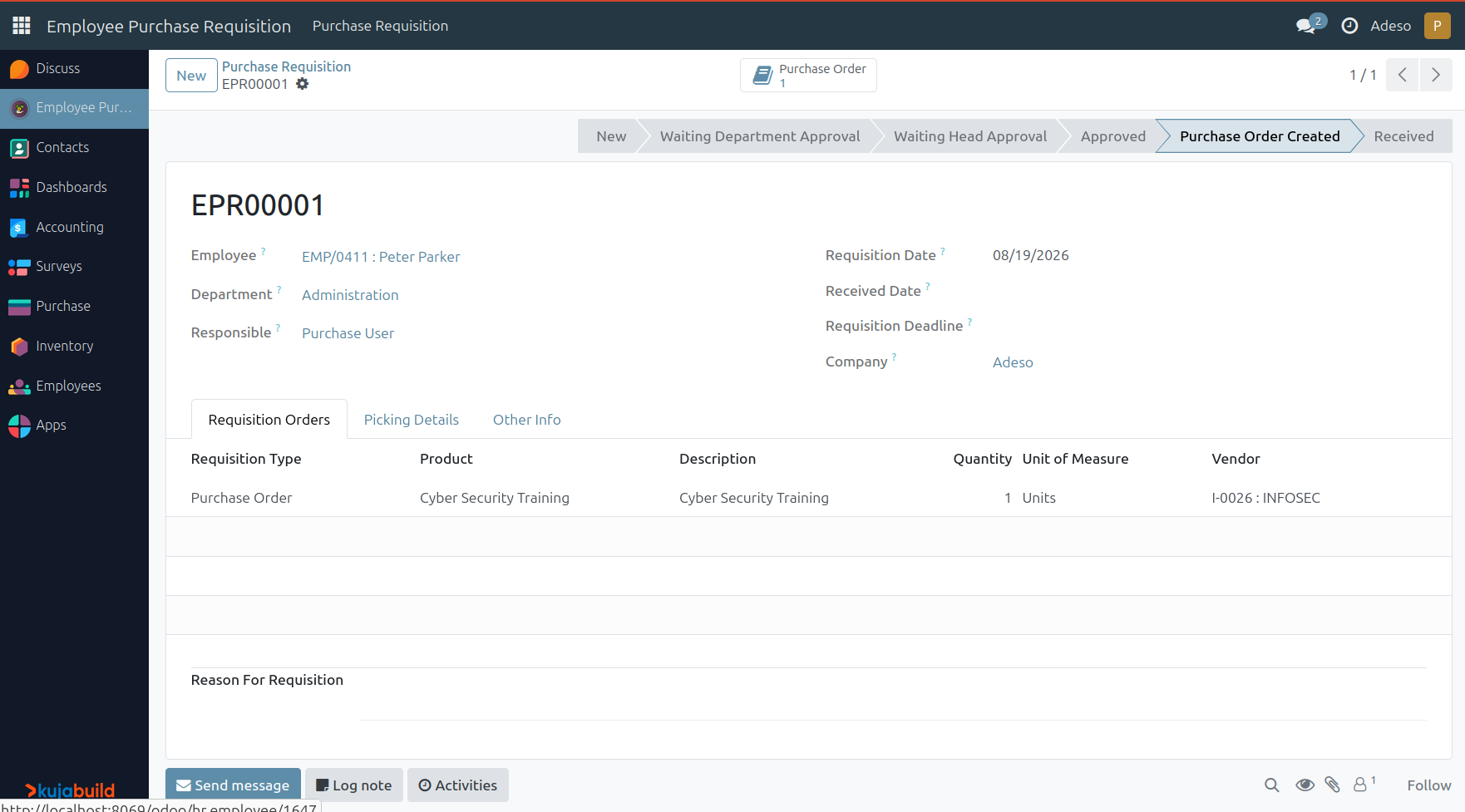
From here, the Purchase Order moves through its normal workflow. When the purchase order is confirmed and items received or the item is moved from internal storage to the employee, the Received button should be clicked to move the requisition to the “Received” state.
Reporting
The Print Requisition Order action (available from the form view) generates a PDF summarizing the requester, key dates, approvals, picking details, and requisition lines, with signature blocks for employee, manager, and approver.