
Appraisals
Configuration
The Configuration menu in the Appraisals application is where the settings can be configured, feedback templates can be edited, evaluation scales can be managed, data for 360 feedback can be stored, and goal tags can be viewed/created.
Settings
To access the Settings menu, navigate to .
Feedback templates
Feedback templates are form outlines used during an employee appraisal. Any edits made to a template are, ultimately, reflected in the appraisals sent to employees.
There are two default templates pre-configured in Odoo Appraisals: one for employee feedback, and one for manager feedback. Each contains several sections, along with questions, and brief explanations for how to respond to the questions.
The Employee Feedback Template has the following sections: My work, My future, and My feelings.
The Manager Feedback Template has the following sections: Feedback, Evaluation, and Improvements.
Any desired changes to the default feedback templates can be made by making changes directly in each template.
360 feedback
The 360 Feedback option can be enabled to allow managers to request feedback from other employees using a different survey form, at any time, independent of the appraisal schedule.
Typically, managers ask for feedback from other people who work with an employee they manage. This includes the employee’s various managers, peers, and direct reports.
To view the 360 Feedback survey, click the → Internal link icon at the end of the Default Template field. The 360 Feedback survey loads, and any desired changes to the survey can be made.
For more information on how to edit a survey, refer to the ../marketing/surveys/create document.
Important
The 360 Feedback form is a pre-configured survey within the Surveys application. In order to use the 360 Feedback option, including the ability to edit the survey, the Surveys application must be installed.
Evaluation scale
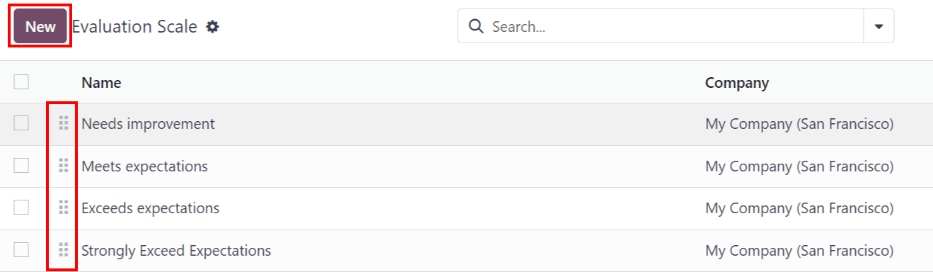
On each employee appraisal form, final rating options appear by default. To view and edit these options, navigate to . This presents the ratings in a list view.
The pre-configured ratings are Needs Improvement, Meets Expectations, Exceeds Expectations, and Strongly Exceeds Expectations. To add another rating, click the New button.
When the New button is clicked on the Evaluation Scale page, a blank line appears at the bottom of the list. Enter the name of the rating in the field.
To rearrange the order of the ratings, click the (six small gray boxes) icon to the left of a rating, and drag the rating to the desired position on the list.
See also