
Internal Transfers
Internal money transfers can be handled in Kujabuild. At least two bank or cash accounts journals are needed to make internal transfers.
Configuration
- Some initial configurations though are required to make internal transfers work.
The target Bank or Cash journals require a default account set
Viable currency rates need to have been added or synced
The Internal Transfer for the company account needs to be configured
For internal transfers involving foreign exchange, the Exchange differences Gain and Loss Accounts need to be configured
Setting the Default Account for a Journal
To open the list of journals, navigate to
Select the target Bank or Cash journal
On the Journal form change the field Bank Account for Bank journals and Cash Account for Cash journals
Adding or Syncing Currency Rates
- To manually add or update currency rates, navigate to
Select the specific currency - eg. if your company currency is USD and you select KES
On the Currency form’s Rate tab, you can add a new rate by selecting an appropriate Date (eg. 01/09/2026) and then either adding an appropriate rate on the Unit per USD (eg. 1.1676) or USD per Unit (eg. 0.85646) fields.
Important
The value put in the Unit per USD field is for the value of USD/KES and conversely, the value put in the USD per Unit is its inverse that is, KES/USD
See also
Syncing Currency Rates from InfoEuro for automatic syncing of currency rates
Configure the Company Internal Transfer Account
Navigate to
Search for Internal Transfer in the search field at the top
Generally, the Internal Transfer is already preconfigured - eg. to Liquidity Transfer
You can then select the account you would like
Important
The Internal Transfer account should be of the type Current Assets and should Allow Reconciliation
Configure the Company Exchange Differences Gain and Loss Accounts
Navigate to
Search for Exchange differences in the search field at the top
Generally, the Exchange difference accounts are already preconfigured to one account - eg. to Foreign Exchange Gains/Losses
You can then select the account(s) you would like
Important
The Exchange Differences Gain and Loss accounts should be of the type Income or Expense
Register an Internal Transfer from one Bank to Another
When money is transferred from one bank or cash account to another, that amount appears as two transactions on the corresponding journals debiting and/or crediting the default accounts set up on the journals and the company’s internal transfer account.
Non-FX Internal Transfer
Access the Internal Transfers list by navigating to ; click New
On the Internal Transfers form add an appropriate Name, Transfer Date
On the From and To sections add values for the Journals and Amount; the Source and Destination currencies will be the same
The FX Transfer field should be unchecked
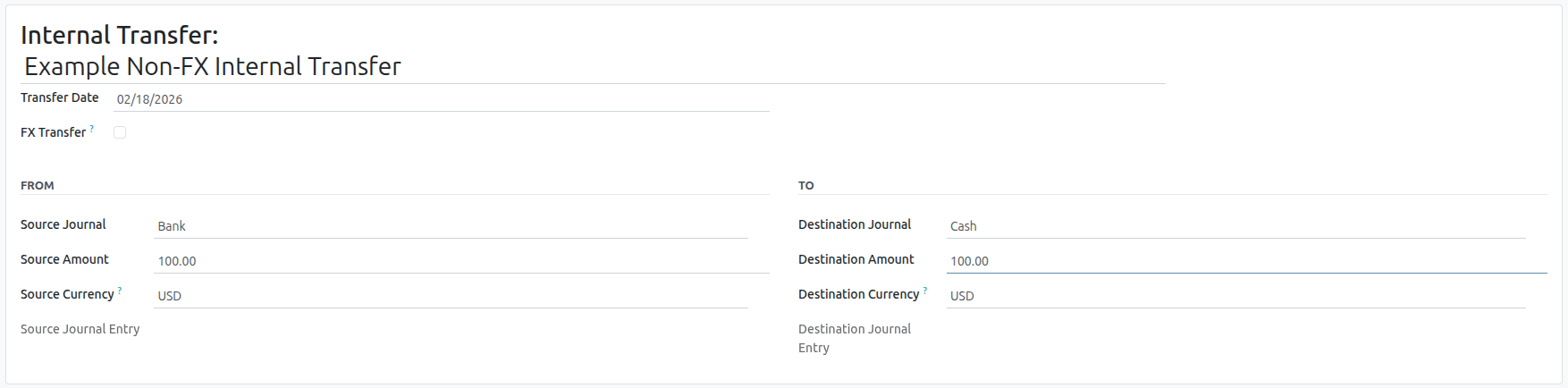
The Create & Validate Transfers button will create and validate the journal entries that do the actual transfer via debits and credits
The Post Transfer button becomes visible; this will post the journal entries that were created
Example
Take, for example, a transfer of $1000 from Bank A to Bank B:
Bank journal (Bank A)
Account
Debit
Credit
Bank A account
$1,000
Internal transfer account
$1,000
Bank journal (Bank B)
Account
Debit
Credit
Bank B account
$1,000
Internal transfer account
$1,000
FX Internal Transfer
Access the Internal Transfers list by navigating to ; click New
On the Internal Transfers form add an appropriate Name, Transfer Date
Ensure that the FX Transfer field is checked
On the From and To sections add values for the Journals and Amount; the Source and Destination currencies will be different
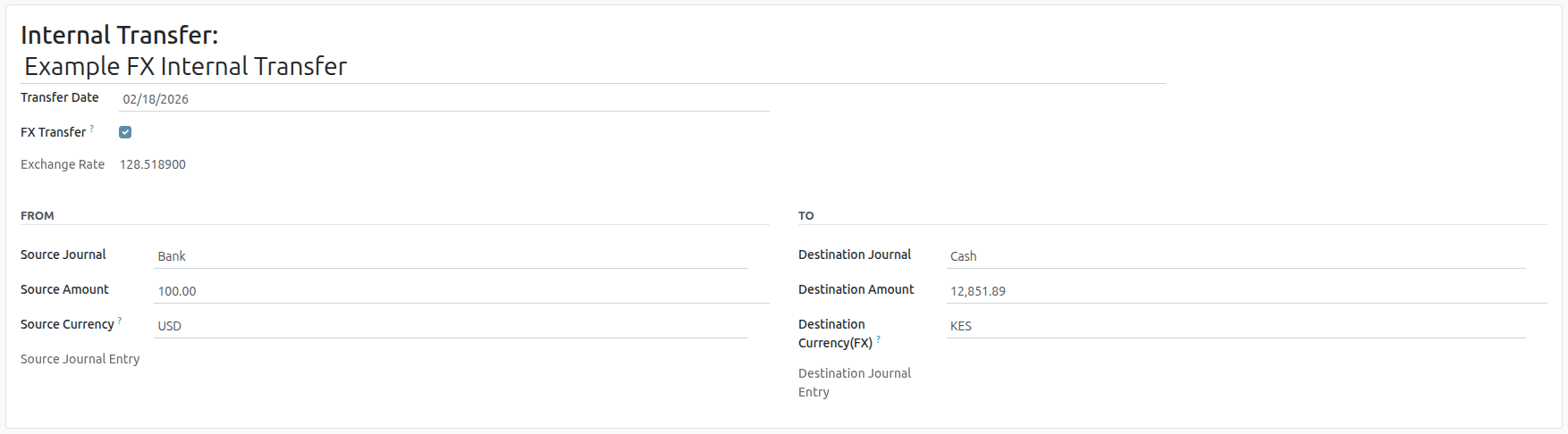
Note
The currency rate field becomes visible showing the rate for the given values
The Create & Validate Transfers button will create and validate the journal entries that do the actual transfer via debits and credits
The Post Transfer button becomes visible; this will post the journal entries that were created
Example
Take, for example, a transfer of $1000 as KES 12,500.00 with a current currency rate of $1 = KES 128.45
from Bank A to Bank B(this means a loss of $3.45):
Bank journal (Bank A)
Account
Debit
Credit
Amount Currency
Bank A account
$1,000
$-1,000
Internal transfer account
$1,000
$1,000
Bank journal (Bank B)
Account
Debit
Credit
Amount Currency
Bank B account
$996.55
KES 12,500
Internal transfer account
$1,000
KES -12,500.00
Foreign exchange gain/loss account
$3.45
$3.45