
DHL integration
DHL is one of the shipping carriers for which a shipping connector is available in Odoo’s Inventory app. By enabling the shipping connector in the app’s settings, and configuring at least one shipping method, the process of calculating shipping rates and generating shipping labels is greatly simplified.
Note
While a variety of shipping connectors are available for different carriers, this documentation details the configuration settings specific to integrating DHL. For instructions on configuring the integration settings common to all shippers, see the documentation on third-party shippers.
Enable DHL shipping connector
Before creating a DHL shipping method, enable the carrier’s shipping connector. To do so, navigate to .
Scroll down to the Shipping Connectors section, and tick the checkbox next to DHL Express Connector. Finally, click Save to apply the changes.
Once the connector has been enabled, a DHL Shipping Methods link appears below the setting. Click the link to open a page showing all shipping methods configured for DHL.
Configure DHL shipping method
After enabling the shipping connector for DHL, shipping methods can be configured for the carrier. Once configured, a shipping method can be added as a line item to sales orders (SOs), which allows for automatic computation of shipping rates, and generation of shipping labels.
To create a new DHL shipping method, navigate to . In the Shipping Connectors section, select the DHL Shipping Methods link below the DHL Express Connector checkbox.
Note
It is also possible to see existing shipping methods for every carrier, by navigating to .
Click New to open a blank shipping method form. If a shipping method has already been created, it can be selected from this screen.
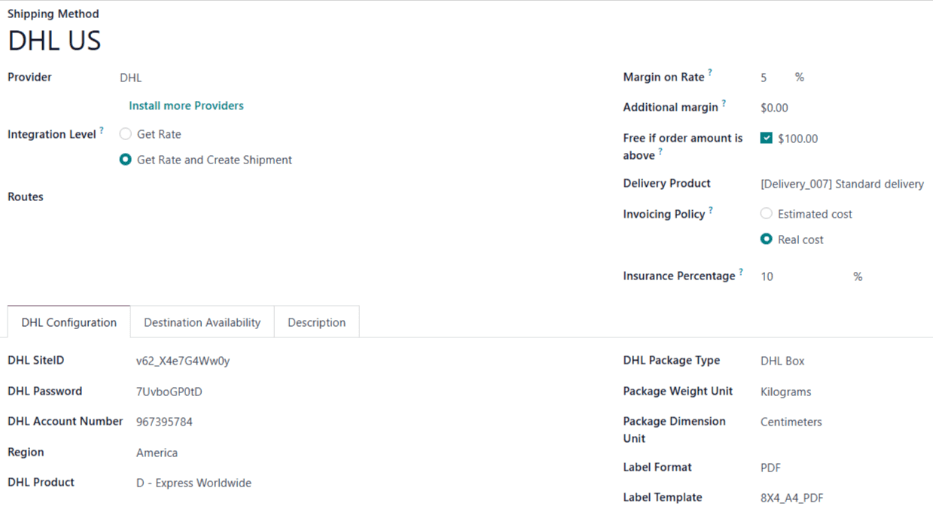
General information
Begin configuring the shipping method by entering its title in the Shipping Method field.
In the Provider drop-down menu, select the DHL option. After doing so, a new DHL Configuration tab appears at the bottom of the form.
All other fields in this section are identical on the shipping method forms for each shipping carrier. See the documentation on third-party shippers for instructions on how to properly configure them.
DHL Configuration
The DHL Configuration tab on the shipping method form is used to connect the user’s DHL account to Odoo, and configure the shipping method’s details.
DHL SiteID, password, and account number
A DHL SiteID, password, and account number are used to link a DHL account with third-party services, like Odoo’s Inventory app.
Important
The SiteID and password are different credentials than the ones used to log in to a DHL account.
Here are two ways to obtain these DHL account credentials:
If a DHL Express account is available: Log into the DHL Developer portal, and then request a DHL API account number.
If a DHL Express account is unavailable: Follow DHL’s steps to obtain a DHL Express account, and then follow the steps in the previous bullet.
Once the developer portal account has been confirmed, log in to the portal using the username and password. Click on the user avatar in the top-right corner of the screen to open the user dashboard.
On the dashboard, click on the Apps tab, and select an app. In the Credentials section, click the Show key button below the API Key and API Secret fields.
Return to the shipping method form in the Odoo database. Enter the DHL API Key in the DHL SiteID field, and the API Secret in the DHL Password field.
Shipping details
The rest of the fields in the DHL Configuration tab are used to configure the shipping method itself:
Region: the region in which the shipping method is used.
DHL Product: the shipping service purchased from DHL (e.g. Express Worldwide).
DHL Package Type: the type of DHL package used for delivery (e.g. DHL Box).
Package Weight Unit: the unit of measure used to display package weight.
Package Dimension Unit: the unit of measure used to display package size.
Label Format: the file format used to generate shipping labels.
Label Template: the paper size used to print shipping labels.
Important
Before selecting service options for a shipping method, make sure those services are actually available for the DHL account. Available services depend on the contract negotiated with DHL.
Options
Additional settings are available in the Options section at the bottom of the DHL Configuration tab:
Generate Return Label: Enable this option to automatically generate a return label after validating a delivery order.
Dutiable Material: Enable this option if the shipping method is liable to customs or other duties.
Turn on the DHL Connection
Once the DHL connection is set up, use the buttons at the top of the form to turn on or debug the connection.
Unpublished/Published: turns the connection on or off.
Test Environment/Production Environment: sets whether requests actually get sent to DHL.
No Debug/Debug Requests: determines whether error logging occurs for requests to DHL.